
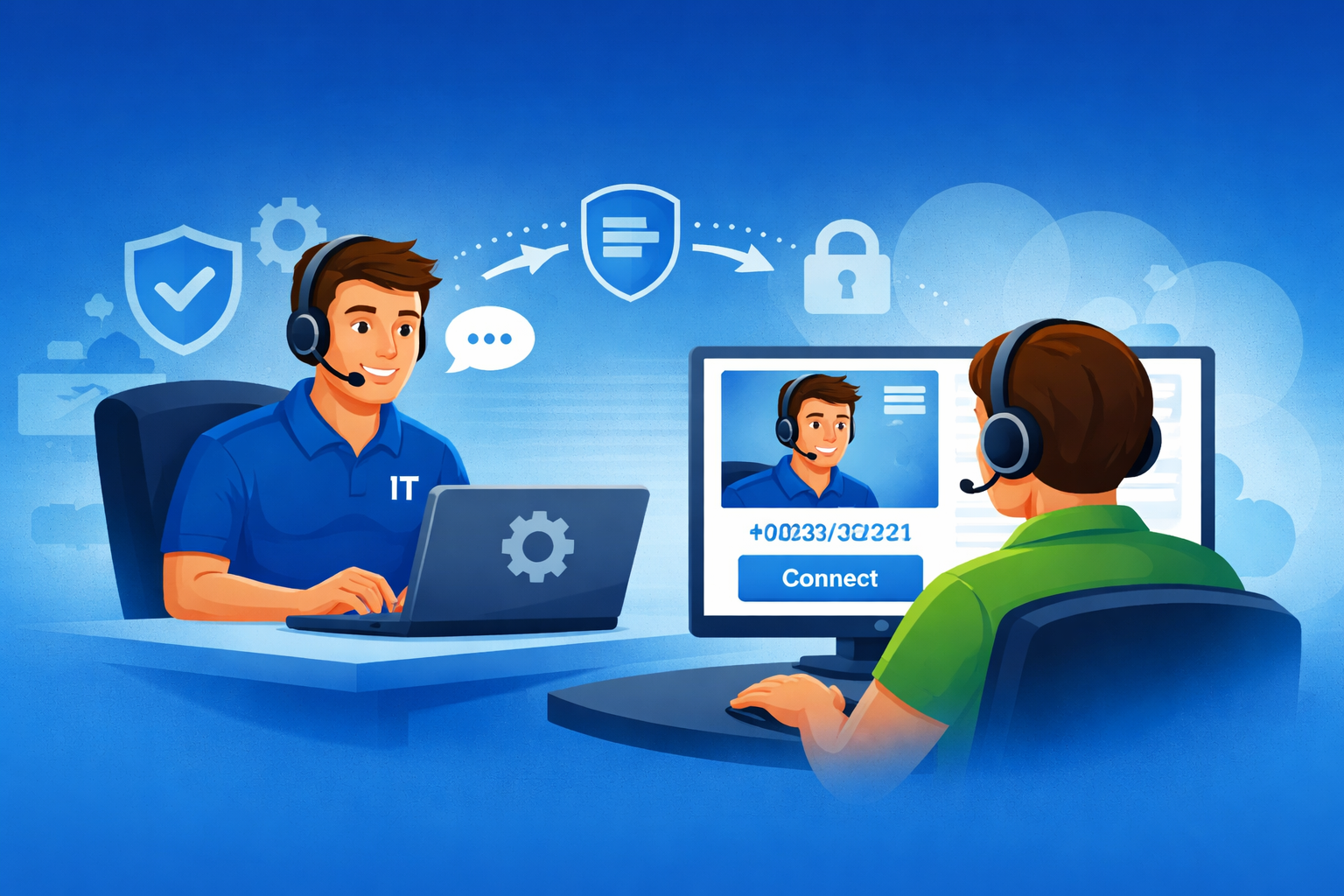
Use this page only if you have been directed here by a Go IT technician.
Downloading and launching the support tool does not guarantee immediate assistance or technician availability. A member of our team must already be assisting you or have asked you to start a remote session.
Before You Begin
Please make sure:
- You are currently working with a Go IT technician
- You have been asked to download this support tool
- You are at the computer that needs assistance
- You are ready to allow screen sharing and remote control
Start Your Support Session
Step 1: Download the remote support tool
Step 2: Open or run the file when prompted
Step 3: Follow any instructions provided by your Go IT technician
Step 4: Approve the connection if your computer asks for permission
Auto-detected Operating System
Unfortunately, we couldn’t detect the operating system of the computer you’re connecting from.
This remote support tool currently supports:
- Windows 10, Windows Server 2022, and newer
- macOS 11 (Big Sur) and newer
- Android 12.0 and newer
- Various versions of Linux.
If your computer matches one of these supported systems, please manually select your operating system below.